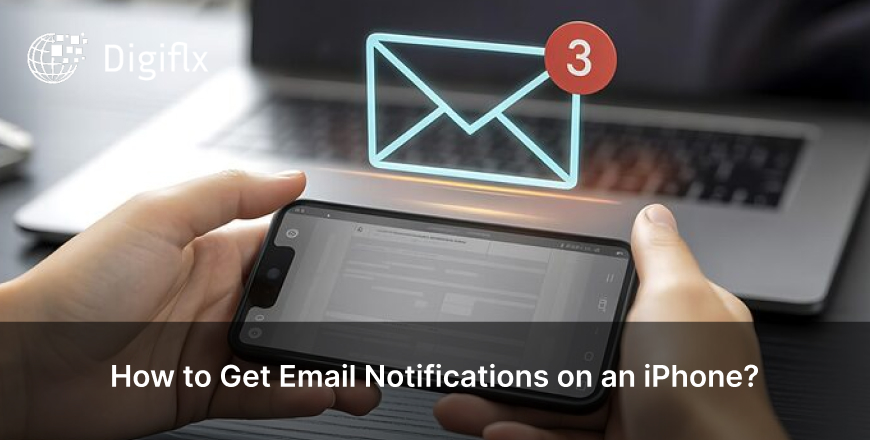
It is understood that missing an important email can be very frustrating, especially when you put your iPhone on silent. But the good thing is setting up email notifications is quicker and easier than it seems.
Read this blog till the end and know that whether you are using Gmail or iCloud, your iPhone can notify you instantly whenever you receive a new email.
Before fixing the issue you must know the reasons why you might not be getting email notifications. Some common reasons can be that your notifications are turned off, background app refresh is disabled, incorrect mail fetch settings, or Do Not Disturb or Focus mode is active. Once you check and ensure these, fixing the issue becomes much easier.
The following are some steps to enable email notification on an iPhone. One of the steps will surely help you to enable notification settings on an iPhone and save you from any issue that might occur in the future:
People need to understand that not getting emails on time is not a thing to panic about; instead, it is all about doing the right settings on your iPhone. Once notifications, fetch options, and background refresh are properly configured, your emails will arrive right on time.
These settings will take only a few minutes to do, but after that you can stay updated without the need to check your inbox regularly, as you will be able to receive the notifications, which will eliminate the need to check the app at regular intervals.
1. Why am I not Getting Email Notifications Instantly?
You might not be getting email notifications instantly because your iPhone might be set to fetch instead of push, which checks emails at intervals. Switching the setting to Push can help to receive emails in real time.
2. How do I Turn on Gmail Notifications on iPhone?
You can turn on Gmail notifications on an iPhone by enabling notifications in both iPhone settings and the Gmail app to ensure that the alerts are active and synced properly.
3. Can Focus Mode Block Email Notifications?
Yes, Focus or Do Not Disturb mode can block or silence email notifications, which is why you need to adjust settings to allow email alerts.