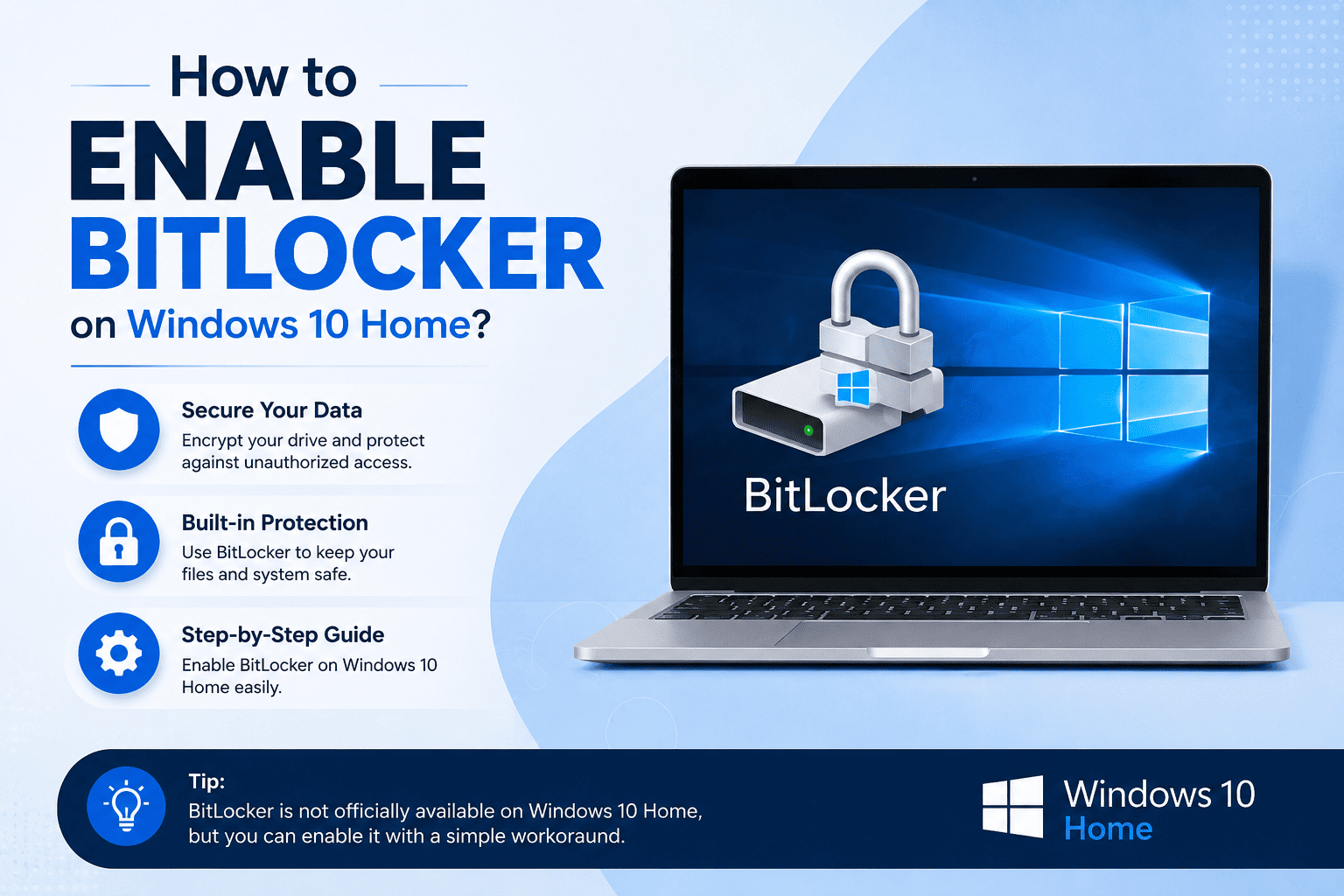
With digitalisation, protecting personal files and valuable data plays a very crucial role, especially for Windows users, as like the technology is becoming advanced, scammers are also updating themselves. Microsoft has launched Bitlocker to protect your sensitive data from unauthorised access.
Read this blog till the end to know how to enable BitLocker on Windows 10 Home?, what BitLocker is, if you can use it on Windows 10, its benefits, what to do if BitLocker is not working, and more.
Bitlocker is a built-in Windows security feature that guards your device and secures your data from unknown and unauthorised access and other malicious activities. You cannot use traditional BitLocker on your Windows 10, as it is limited to pro, enterprise or education editions; however, you can use another simplified feature known as Device Encryption for your Windows 10 Home.
The following are some important things that a user must keep in mind, before or while encrypting:
Follow the steps mentioned below to enable device encryption in Windows 10 Home:
Step 1: Sign in With a Microsoft Account
A Microsoft account is required for data encryption for protecting your data and saving your recovery key safely.
Step 2: Open Device Encryption Setting
After creating a Microsoft account, you need to go to “Settings”, then go to “Update and Security”, then “Device Encryption”.
Step 3: Turn On Encryption
Now, click on “Turn On”. After that, Windows will start encrypting data, files, and more automatically in the background without affecting your performance. However, the process might take some time depending on the storage of your system.
The following are the benefits of enabling BitLocker or device encryption on your Windows 10 device:
It is crucial for users to understand that Windows 10 doesn’t include the full version of BitLocker, as it is reserved for the Pro or Education editions for now; however, many compatible devices support device encryption.
You can enable device encryption, as it provides the same protection as Bitlocker provides in safeguarding your files, data, personal information, and more. If you want advanced protection, then you can upgrade to Windows 10 Pro.



No, you cannot use BitLocker on Windows 10 Home; however, you can use another lighter feature known as Device Encryption.
To enable encryption on Windows 10 Home, you need to go to Settings, then Update & Security, and then Device Encryption and tap on Turn It On.
Yes, device encryption is generally safe to use, as it protects your personal files and improves the overall security of your system.