Imagine you are working on your Windows 10 computer with full focus, and suddenly it crashes and displays a blue screen with an error code. It is completely understood how frustrating this situation can become.
The BSOD, or Blue Screen of Death, is a common issue, which is why you don’t need to panic. Read this blog till the end to know how to fix the blue screen of death Windows 10 and some other crucial details, like what BSOD is, why it appears in Windows 10, and more.
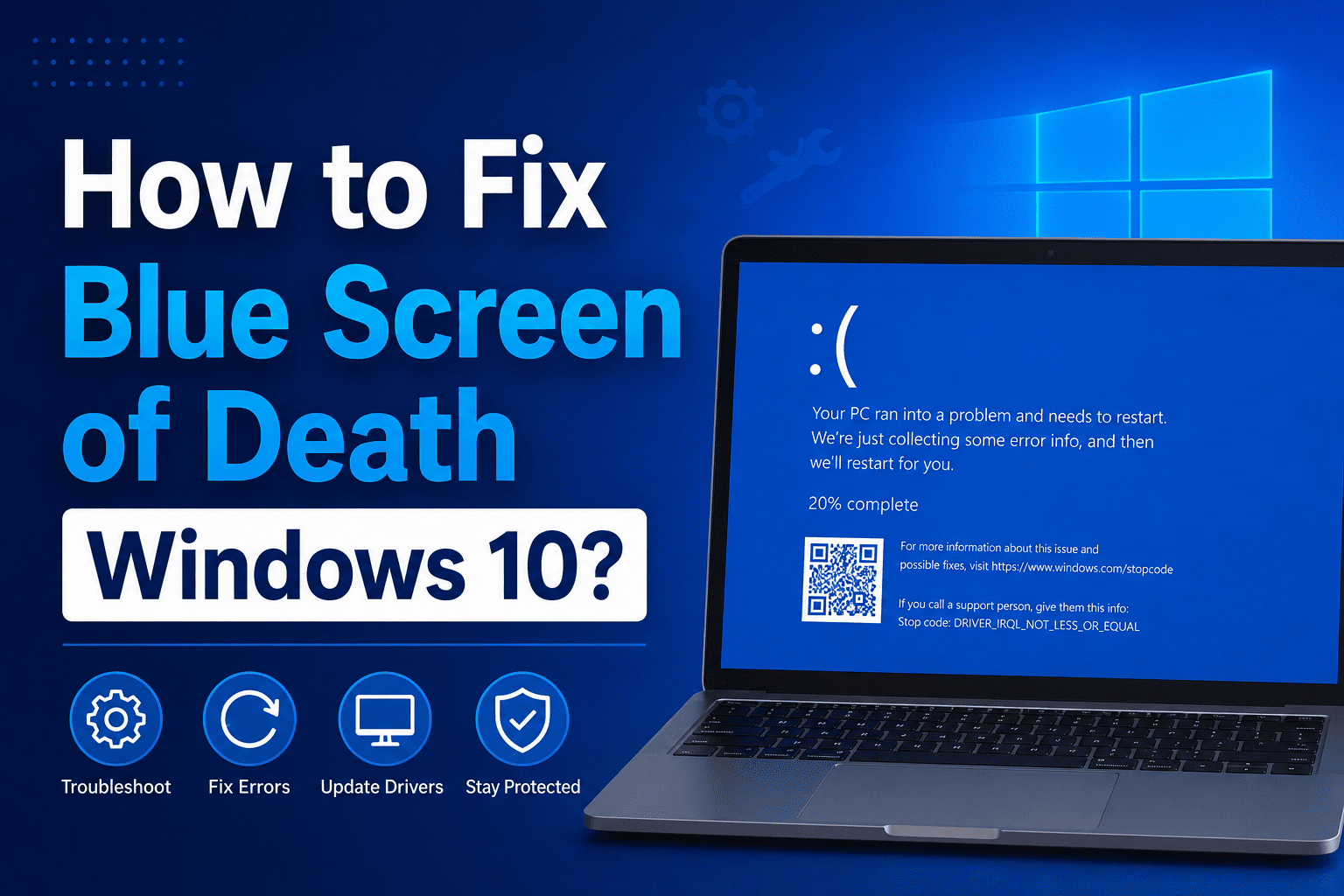
The Blue Screen of Death, or BSOD, is a safety screen that appears to be blue in colour with some common stop codes whenever your Windows deals with a critical error and shuts down.
To understand this situation, think about how we stop wherever we sense danger or process a situation; the same is the case with your computer. Your Windows or computer senses a threat and freezes itself to prevent damage to hardware or data loss.
The following are some reasons why a blue screen appears in your Windows:
The following are some steps that can help you to fix the blue screen in Windows 10:
Step 1: Restart Your Computer
Some blue screen errors are temporary, which might occur because of some glitches, and can disappear after a normal restart. It is advised to restart your system safely.
Step 2: Boot Windows 10 in Safe Mode
If there is a software or driver-related issue, then you need to enter safe mode. Select "Start", then "Settings", and then choose "Update & Security" and select “Recovery”. Now under “Advanced startup”, select “Restart now”. Select “Troubleshoot”, then “Advanced options”, then “Startup Settings” and “Restart”.
Step 3: Update Device Drivers
Many people don’t know, but outdated drivers can cause BSOD issues. Open Device Manager, then choose a device category and select the driver to update it, and then restart your device.
Step 4: Run SFC Scan
Run the command prompt window and type SFC/scannow and press enter, then wait for it to complete and restart your PC.
Step 5: Scan PC for Virus or Malware
Viruses and malware can often cause BSOD. Go to Windows security and run a full system scan by using trusted antivirus software.
The blue screen issue can look like a big challenge, but by following the right steps patiently, you can easily troubleshoot it. If the above mentioned steps were not helpful to you, it is always advised to call a technician or get professional help as soon as possible.