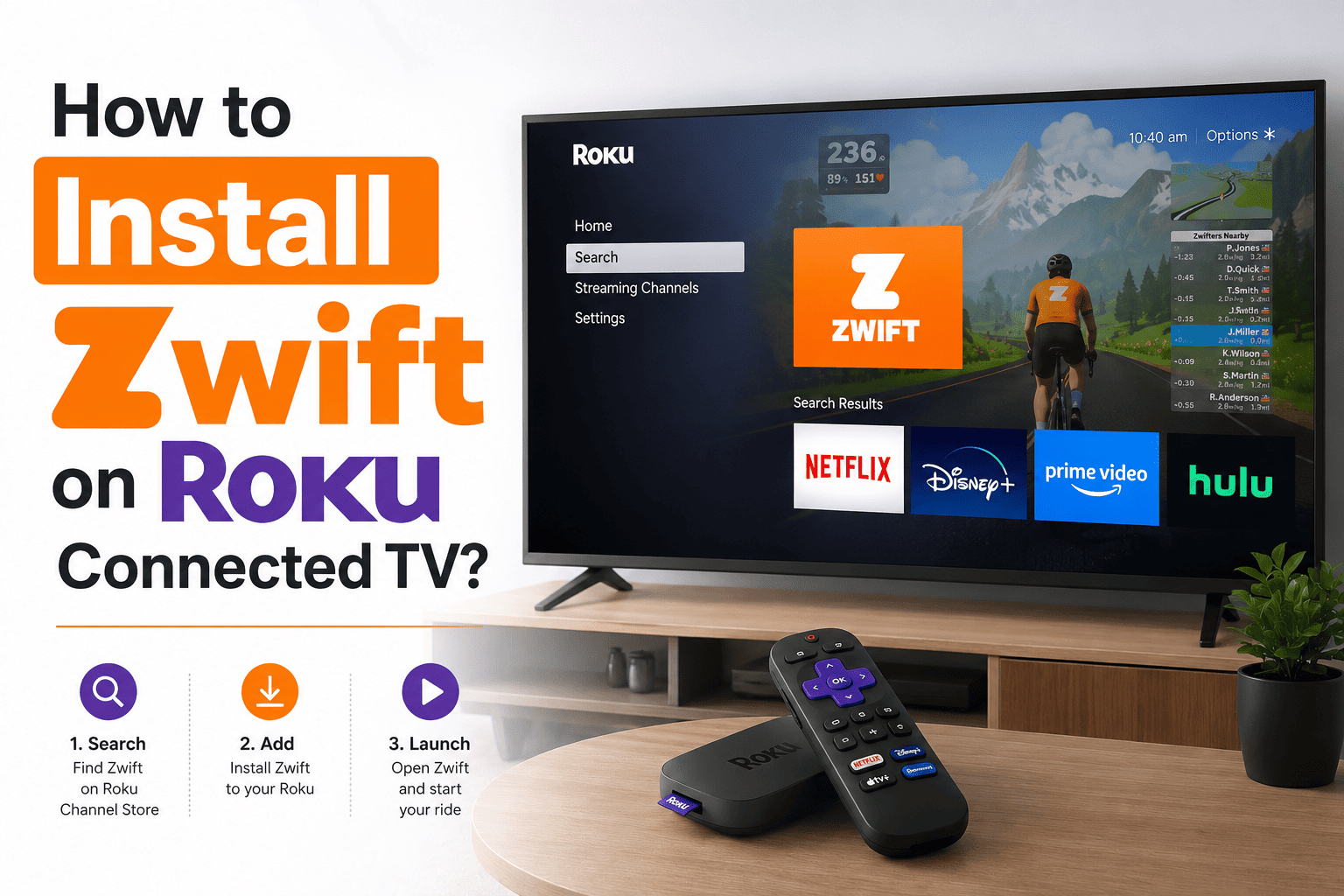
Are you a cycling freak, or do you enjoy doing workouts at home? We can assure you that running Zwift on your TV can make your session more engaging. Before you go to install, let’s tell you that you cannot directly install Zwift, as it is directly not available on the Roku store.
Read this blog till the end if you want to know how to install Zwift on Roku connected TV, as you’ll get to know about working methods that can help you run Zwift, common issues and their solutions, and more.
No, you cannot install Zwift directly on Roku TV, as Zwift is currently not available on the Roku Store. However, there are other ways by which you can display Zwift on your TV with the help of screen mirroring, setting up an HDMI connection from your computer, and more.
Mentioned below are some effective methods that can help you run Zwift on a Roku TV; these methods are
Method 1: Screen Mirror Zwift from Windows Laptop
Firstly, connect the Roku TV and laptop to the same Wi-Fi network. Then in Roku, go to “Settings”, then “System”, and then “Screen Mirroring" to enable screen mirroring. On your Windows laptop. Select your Roku device, and open Zwift on your laptop.
Method 2: Connect from Android Device
If you are an Android user, make sure that your device and Roku are connected to the same Wi-Fi. After that, open the cast screen or Smart View, then select your Roku device and run the Zwift app.
Method 3: Airplay from your iPhone or iPad
If you use an Apple device, enable AirPlay in Roku settings. After that, open the Zwift app on your Apple device and select screen mirroring or AirPlay from the control centre, and select your Roku device.
Method 4: Connect Via HDMI cable
If you want a smooth performance, then it is recommended to connect your laptop directly to Roku TV with the help of an HDMI cable. Connect the cable, select the right HDMI on your TV, and run Zwift.
Mentioned below are some common issues that users usually face.
1. Zwift not showing on Roku Tv
Ensure that both devices are connected to the same Wi-Fi. If the issue still continues, then restart Roku and your device.
2. No sound on TV
If you can’t hear any sound, then it is advised to check the audio settings of the TV and set Roku as the default audio device.
3. Screen lag or delay
Move your device closer to the router or cut off other activities that are in progress with the help of the network.
It is not a matter of concern if Zwift is not directly available on the Roku TV, as there is a solution for every problem. By mirroring your screen or using an HDMI cable, you can surely connect Zwift to your Roku TV and enjoy your cycling session with more engagement.



The best way to use Zwift on Roku TV includes using an HDMI cable from your laptop, as this can provide you with a smooth performance.
Yes, most of the Roku devices support the screen mirroring option and AirPlay.
If Zwift is lagging on your TV, the possible reason can be weak Wi-Fi or poor network connectivity. This can cause the screen to load with delay or buffer.