Trying to change your payment method on Alexa can feel confusing because what if we tell you that you’re doing it wrong? As everything is managed via your Amazon account.
If you want to know how to change the payment method on Alexa, then read this blog till the end, as you’ll get to know about the following:
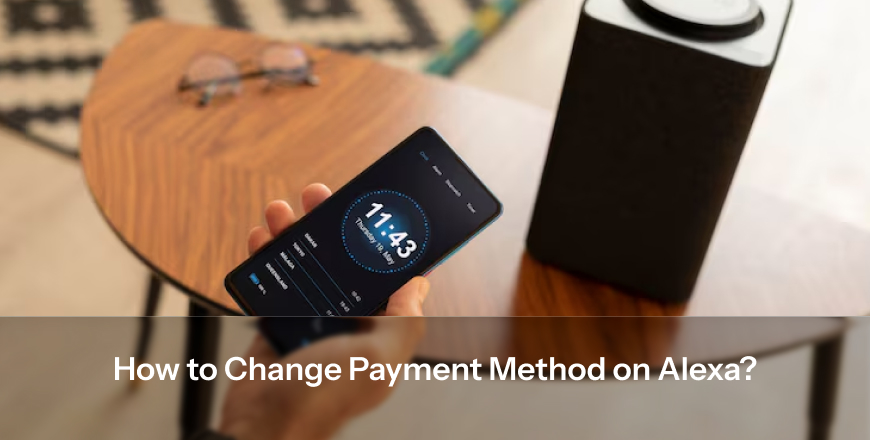
People often think that they can change the payment method directly on Alexa, which is not possible, as Alexa is a voice assistant that can follow limited commands only. However, to perform a certain task like changing the payment method, you need to make it via Amazon, as Alexa uses your Amazon account for all the payments. However, you can change the payment method by following the methods mentioned below:
To change the payment method on Alexa, we have mentioned two methods; those are
Method 1: Using Amazon Website
To change the payment method from Amazon’s website, follow the mentioned points:
After updating, Alexa will use your new payment method or card.
Method 2: Using Amazon App
To change the payment method from the Amazon app, follow the mentioned points:
If you use Alexa on your phone regularly, this is the best option.
Some common errors that users make while changing the Amazon payment method:
The above mentioned steps should resolve this issue; however, if you face the following issues, you should contact the Amazon support centre immediately:
We understand that changing the payment method can be overwhelming, but after you understand that everything is managed through Amazon, you’ll understand why your procedure didn’t work out.
You just need to update your payment details and set them as default either from Amazon’s website or app, and Alexa will follow that without making much effort.
1. Can I change my payment method directly through the Alexa app?
No, you can’t change payment method directly through the Alexa app, as Alexa doesn’t have a full payment selection. Alexa uses an Amazon account for all the transactions, which is why you’ll need to update your payment method through Amazon, either by website or app.
2. Why is Alexa still using my old payment method?
Alexa can use your old payment method because your old card can be set as the default or is still linked to a specific subscription. Even after adding a new card, it is required that you remove the old one or manually set the new card as the default payment method in your Amazon account.
3. How do I fix payment issues on Alexa if my card is not working?
If you are facing payment issues on Alexa, you need to check if your card details are correct and updated or not. Try removing and re-adding the card and setting it as default or checking your billing address. However, you can restart your Alexa device to refresh the connection.