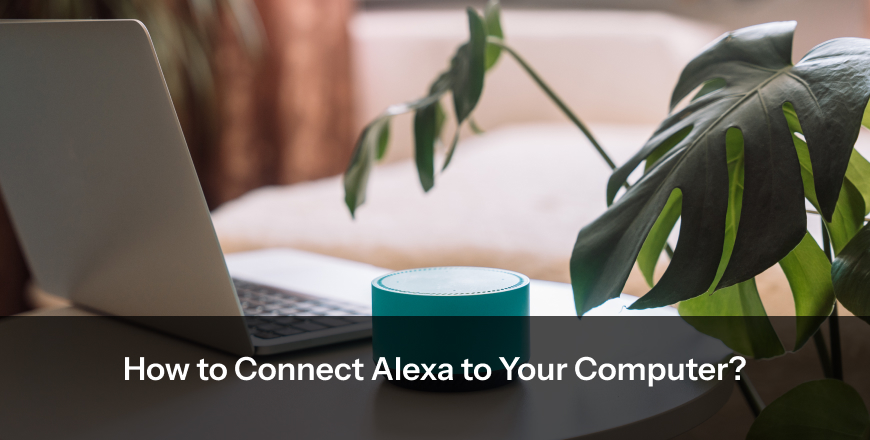
Do you know that voice control on your PC is easier than it sounds? With Alexa it is possible, and the basic requirement for setup is only Bluetooth and the app.
If you want to know how to connect Alexa to your computer, then read this blog till the end, as you’ll get to know about the following:
In order to connect Alexa to your computer, the followings are some requirements:
Some benefits of connecting Alexa to your computer include hands-free control, which means you can control things by just speaking. You can play music, set reminders, and stay updated with the latest news without even typing, by just speaking. You can have quick access to all the information and can get smart home control from the comfort of your desk.
The following are some flexible methods that one can use according to the availability to connect Alexa to the computer. These methods include connecting via Bluetooth, the Alexa app, and an AUX cable. Let’s know about these methods in detail:
Method 1: Connect Alexa Via Bluetooth
Turn on Bluetooth on your computer, and command Alexa to pair with your Amazon Echo device. Then select the device from your computer’s Bluetooth list and confirm the connection. This method is best if you want to use Alexa as a speaker.
Method 2: Connect With Alexa App
Download the Amazon Alexa app from the Microsoft Store and sign in with your Amazon account. Follow the setup instructions as shown on the screen and enable the microphone access. This method is best if you want full Alexa functionality on your PC.
Method 3: Connect Through AUX Cable
You can use a 3.5mm Aux cable to connect you computer with the Alexa device. You can also select Aux mode if require. This method is best older devices that don’t support bluetooth.
Setting up Alexa to your computer, PC, or Mac is simple and doesn’t require any specific knowledge, as you can try connecting with Bluetooth first, and then can try connecting with the app if connecting with Bluetooth fails.
If both of the methods fails, you can always try connecting with an Aux cablem as this method will always work. Also, don’t forget to explore the Amazing features of Alexa once the setup is completed.
Q1. Can I connect Alexa to my laptop without Bluetooth?
Yes, you can connect Alexa to your laptop without Bluetooth with the help of a 3.5mm AUX cable to create a wired connection. By installing the Amazon Alexa app on your computer, you can use Alexa directly without the need for any external device.
Q2. Is Alexa compatible with Windows and Mac?
Yes, Alexa works smoothly on Windows through the Amazon Alexa app, which offers a full voice assistant feature. On Mac, there is no such dedicated app; however, you can connect with Bluetooth or use Alexa-enabled devices such as Amazon Echo devices.
Q3. Can Alexa control my computer?
Alexa doesn’t fully control your computer like a native assistant, but it can handle other tasks like playing music, setting reminders, and managing smart home devices. When an Amazon Echo device is paired with Alexa, it works as a voice-enabled speaker and assistant.